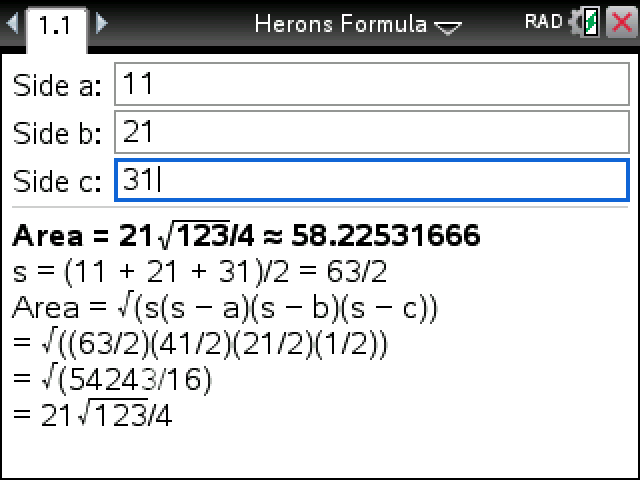
Three side lengths in, the area of the triangle out. The answer comes as a simplified radical and a decimal, with the working underneath.
Plug in your TI-Nspire, turn it on, and click Send to calculator.
On Windows this works with the CX II. For an original CX, use TI's TI-Nspire software.
Sending straight to your calculator works in Chrome or Edge on a computer.
By CalcPlex.
How to install it
- Download the program with the button above. You'll get a .tns file, the file type TI-Nspire calculators use.
- Open nspireconnect.ti.com in Chrome on a computer or Chromebook, and plug your calculator in with its charging cable.
- Choose File Transfer, then To Calculator, then From Computer, and pick the .tns file you just downloaded.
- When it lands, the calculator shows a prompt. Choose Open to jump straight into it.
It sits in My Documents afterwards, so you can reopen it any time.
TI's web app only supports the CX II and CX II CAS. If you have an original CX, or you already use the TI-Nspire Student Software, sending the file through that works the same.
Running it
The document is called Herons Formula in My Documents. Open it and type the sides into Side a, Side b and Side c, pressing tab to move along. Order doesn't matter. Press enter for the area.
Sides can be decimals or fractions (type 1/2 with the ÷ key) as well as whole numbers.
The working
Under the area it writes out the same lines you'd put on paper, which is handy when the question says to show your work:
- the semi-perimeter, s = (11 + 21 + 31)/2 = 63/2
- Heron's formula, √(s(s − a)(s − b)(s − c))
- your numbers substituted in
- the product under the root, then the simplified answer
Sides that don't make a triangle
If one side is too long, you get a sentence with the numbers filled in, like "These sides can't make a triangle: 1 + 2 is less than 5." Sides that exactly add up, such as 1, 2 and 3, get told they make a flat triangle with an area of 0.
It works the same on CAS and non-CAS calculators.