To find the inverse of a matrix on the TI-84 Evo, type the matrix, then raise it to the power of negative one. The toggle key shows the answer as fractions.
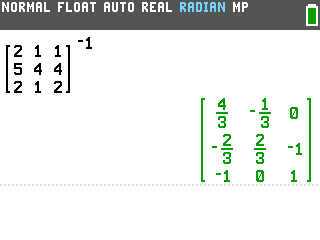
This example finds the inverse of a 3 × 3 matrix:
A =
211544212
Type the matrix
- Press
alpha, thenzoom. That opens the matrix maker, a size picker with a ROW column and a COL column. The darkened numbers are the size it will build.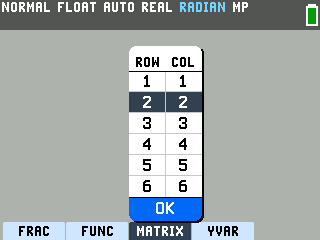
- Press the up arrow until 3 is highlighted in the ROW column, then press
enter. That sets 3 rows. - Press the right arrow, then
enter. The highlight moves across to the 3 in the COL column, andentersets 3 columns.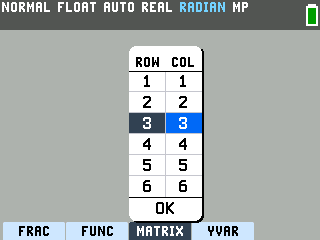
- Press the down arrow until OK is highlighted, then press
enter. An empty 3 × 3 matrix appears on the home screen.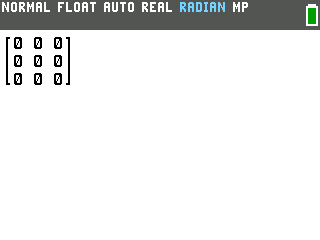
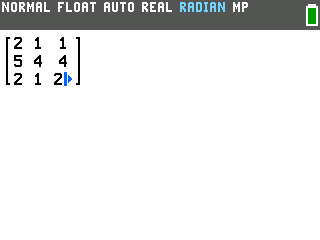
- Type the entries, pressing the right arrow between them. The cursor works across the
top row, then drops to the next one. Here that's 2, 1, 1 on the top row, 5, 4, 4 in the middle and 2, 1, 2
on the bottom.
Find the inverse
- Press the right arrow once more. The cursor steps outside the brackets. Skip it and the −1 lands on the last entry instead of the whole matrix, which gives a wrong answer with no error.
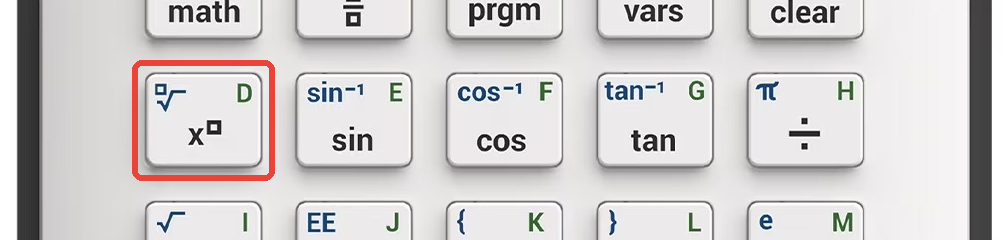
- Press the power key, then the negative key, then 1. The TI-84 Evo has no
x−1 key, so the inverse is typed as a power. The power key is the one marked x with a small
box, just above x².
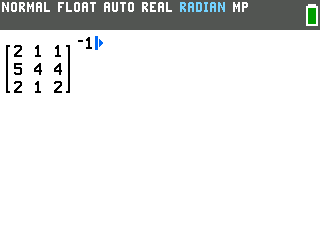
- Press
enter. The inverse comes back in decimals, too wide for the screen. The small arrow at the right edge means a column is cut off.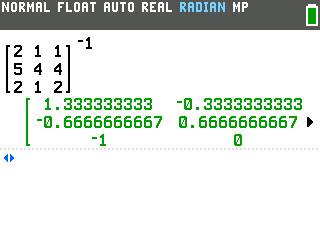
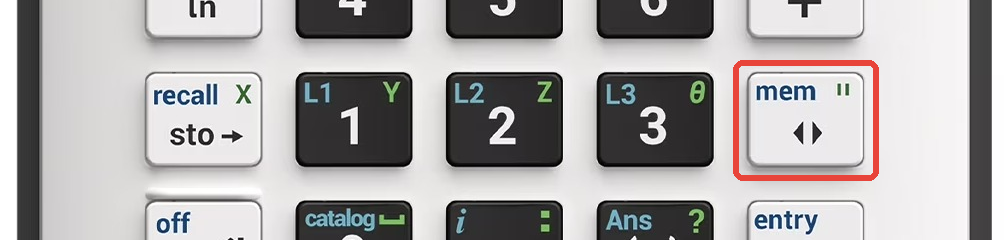
- Press the toggle key, to the right of the 3 key. The inverse switches to fractions and
fits on the screen: 4/3, −1/3 and 0 on the top row, −2/3, 2/3 and −1 in the middle, and
−1, 0 and 1 on the bottom.
If the matrix is stored as [A]
If you saved the matrix as [A] in the matrix editor (the matrix multiplication guide shows how), the inverse works the same way.
- Press
2nd, thenvars. The blue MATRIX label above the vars key marks the matrix menu. Its NAMES tab lists each saved matrix with its size.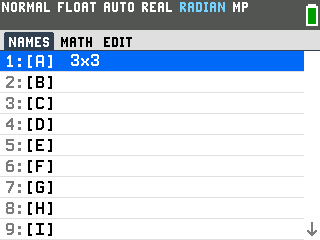
- With [A] highlighted, press
enter. [A] lands on the home screen. - Press the power key, the negative key, then 1, and press
enter. The inverse comes back in decimals. - Press the toggle key. The same fractions as before appear.
![The TI-84 Evo showing [A] to the negative 1 as a 3 by 3 matrix of fractions](/images/evo/inv-a-result.png)
Good to know
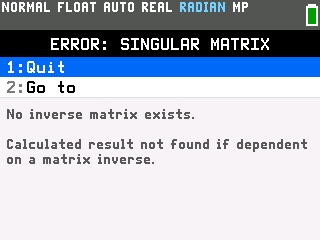
- ERROR: SINGULAR MATRIX means there is no inverse. Some matrices don't have one; the
numbers 1 through 9 in order are an example. Choose 1:Quit to get back to the home screen.
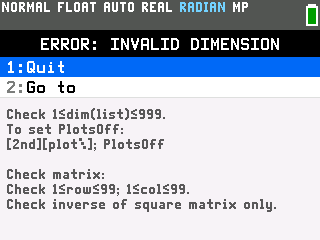
- The matrix has to be square. A 2 × 3 matrix to the negative one gives
ERROR: INVALID DIMENSION, and the help text ends with "Check inverse of square matrix only."
- Press toggle again to go back to decimals.
- The MATH menu's ▸Frac works too. Press
math, thenentertwice: the line reads Ans▸Frac and the same fractions come back. - The matrix maker remembers the last size. The next time you open it, the picker starts on the size you used before, so check both numbers before you choose OK.
- Bigger matrices go through the matrix editor. The matrix maker stops at 6 rows and 6 columns; the editor takes up to 99 × 99.