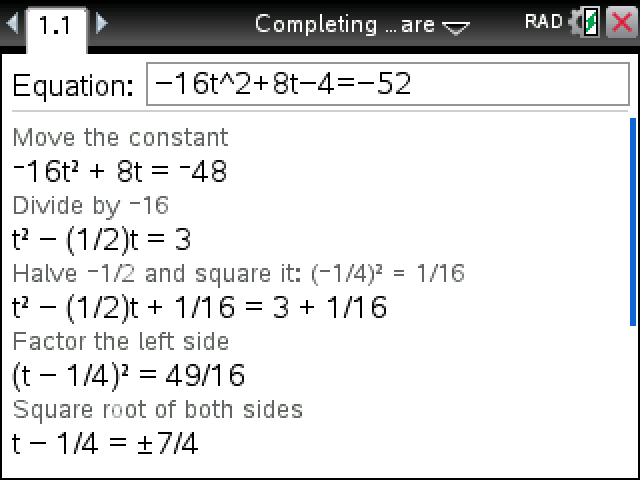
Completes the square for you one step at a time, the way you'd write it out by hand, and finishes with the roots and the vertex form.
Plug in your TI-Nspire, turn it on, and click Send to calculator.
On Windows this works with the CX II. For an original CX, use TI's TI-Nspire software.
Sending straight to your calculator works in Chrome or Edge on a computer.
By CalcPlex.
How to install it
- Download the program with the button above. You'll get a .tns file, the file type TI-Nspire calculators use.
- Open nspireconnect.ti.com in Chrome on a computer or Chromebook, and plug your calculator in with its charging cable.
- Choose File Transfer, then To Calculator, then From Computer, and pick the .tns file you just downloaded.
- When it lands, the calculator shows a prompt. Choose Open to jump straight into it.
It sits in My Documents afterwards, so you can reopen it any time.
TI's web app only supports the CX II and CX II CAS. If you have an original CX, or you already use the TI-Nspire Student Software, sending the file through that works the same.
Running it
Open Completing the Square from My Documents, type the equation in the one field and press enter. There's no need to rearrange it first: -16t^2+8t-4=-52 goes in with constants on both sides.
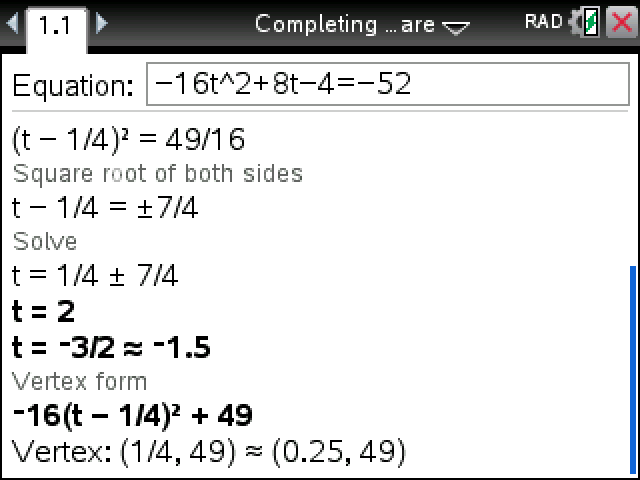
The working is longer than the screen. Press the down arrow to scroll through it, and tab to get back to the equation.
The steps it shows
Each line has a short grey caption above it saying what just happened:
- Move the constant to the other side.
- Divide by the x² coefficient (skipped when it is already 1).
- Halve the x coefficient and square it, then add that to both sides.
- Factor the left side into a perfect square.
- Take the square root of both sides.
- Solve for the roots.
After that come the vertex form and the vertex. Everything stays in fractions and simplified radicals, and in your letter: a t question keeps its t all the way down.
When the right side goes negative, the square root step uses i: x² + 2x + 5 gets to (x + 1)² = −4, then x = −1 ± 2i. Start from y=x^2+6x+5 and the first step sets y to 0, while the vertex form keeps it: y = (x + 3)² − 4.
The CAS command completeSquare jumps straight to the answer, and non-CAS models don't have it at all. This shows the working on both.