Putting programs on your TI-84 Evo is a great way to expand its math capabilities for standardized tests, or to play classic games like Tetris.
Send a program from CalcPlex
- Open our math programs or games.
- Click More Information under the one you want. Its page has this box.
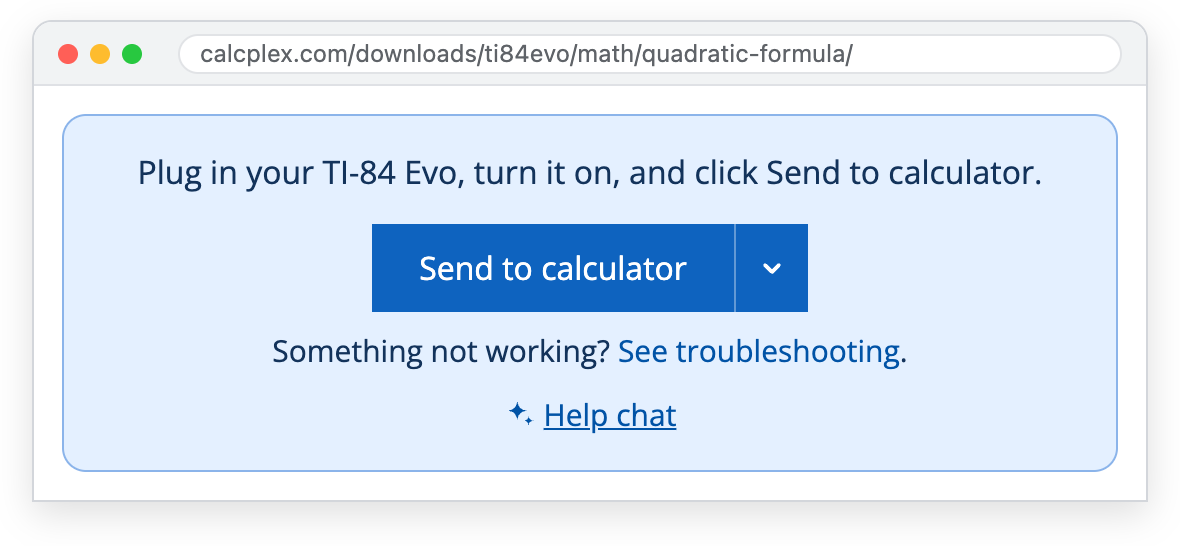
- Plug the calculator into your computer and turn it on.
- Click Send to calculator. Pick your TI-84 Evo in the pop-up, then click Connect.
The page says Sent! once the program is on your calculator.
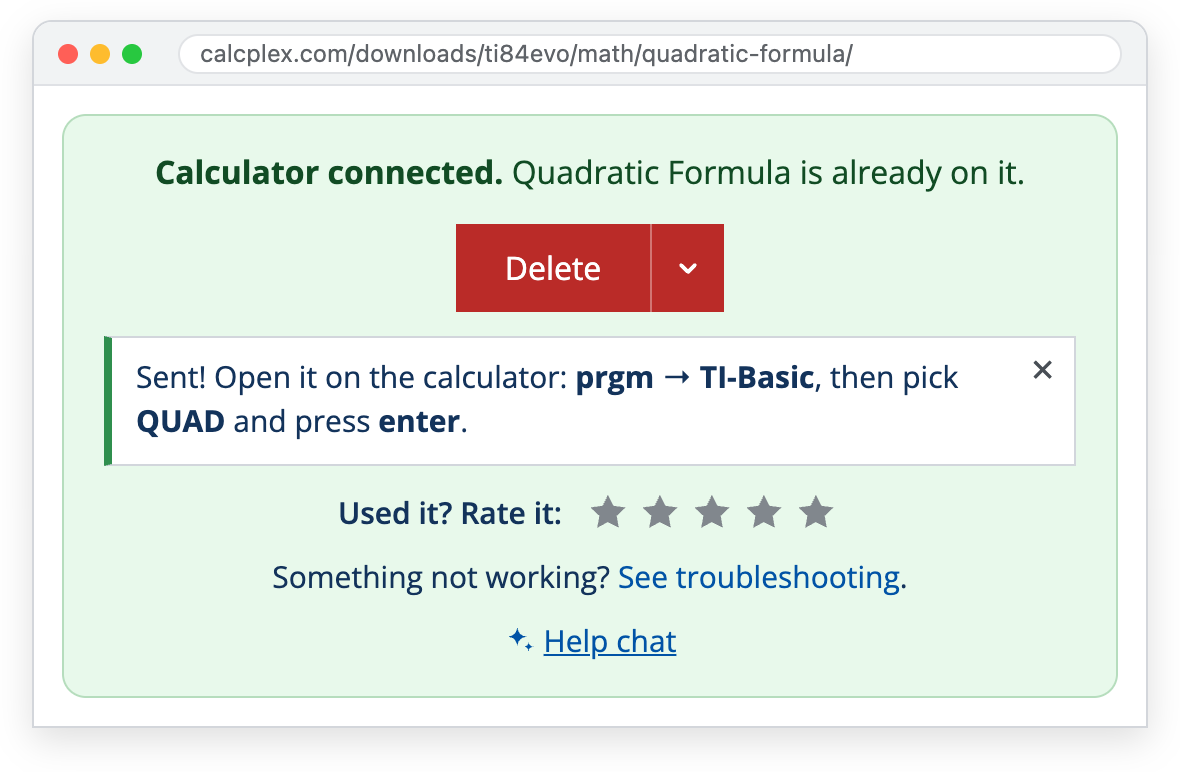
Run it on the calculator
- Press the
prgmkey. The PROGRAMMING menu opens with two entries: TI-Basic and Python App. If Python App isn't there, reinstall Python to bring it back, then send your programs again.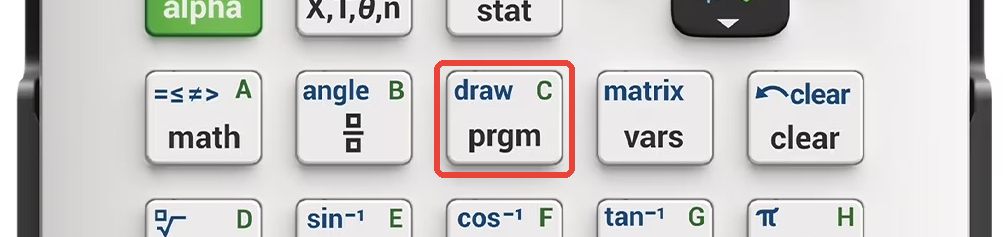
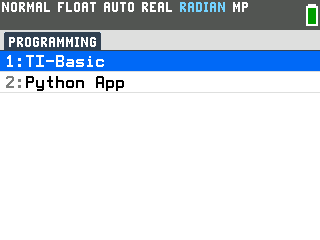
- Select TI-Basic. Every TI-Basic program you have sent is in this list. The
example here is the
Quadratic Formula program,
which arrives as QUAD.
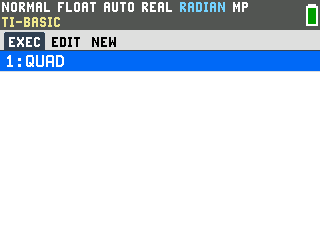
- Select your program. The list closes and prgmQUAD is waiting on the home screen.
- Press
enterto run it.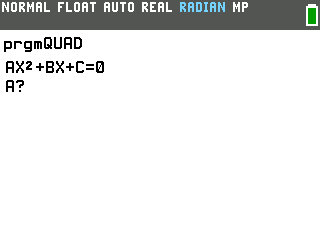
A Python program, like any of our games, is in the Python app instead.
- Press
prgmand select Python App. The Python app opens on its list of programs.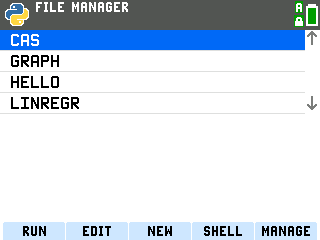
- Arrow to your program and press
enterto run it.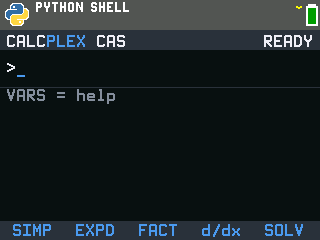
Send a file with TI Connect Evo
For a program file from somewhere else, use TI's own web tool. It runs in Chrome only.
- Plug the calculator into your computer and turn it on. Go to
connectevo.ti.com
and click CONNECT TO CALCULATOR.

- Pick your calculator in the pop-up. Click TI-84 Evo in the list, then Connect.
- Click
SEND FILES.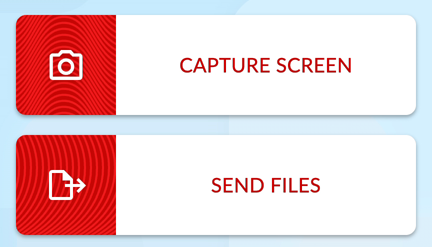
- Click
SEND TO CALCULATOR. In the window that opens, pick the.8xp2or.pyfile you saved.
- Click
SENDin the box that opens next. Wait for FILES SENT TO CALCULATOR before you unplug anything.
Then run it from prgm.
If it doesn't work
- Safari and phones can't connect to the calculator. Use Chrome, Edge or Firefox on a computer.
- A school Chromebook may not connect. Some districts block USB device access on school-managed Chromebooks. Send from a home computer instead.
- A TI-84 Plus CE program (an
.8xpfile) won't run on the Evo. For math, try the Evo programs here.