The TI-84 Evo has a Numeric Solver built in that finds the value of X that makes an equation true.
Open the Numeric Solver
- Press
onfor the app grid, and arrow down to the Numeric Solver. Its icon reads 2x=x², and the bar along the top of the screen names whatever is highlighted, so it says NUMERIC SOLVER when you land on it.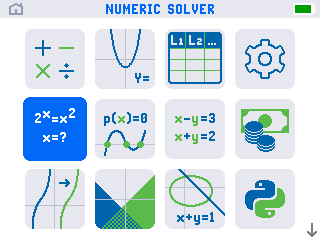
- Press
enterto open it. The app opens on an EQUATION SOLVER screen with two boxes, E1 and E2. They hold the two sides of your equation, left and right.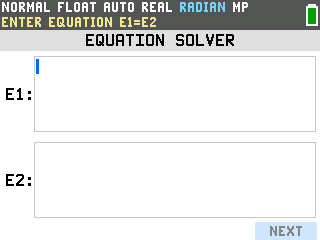
Type an equation and solve it
As an example, this solves 2x = 2x.
- Type the left side into E1. Press 2, then
^, thenX. - Press
enterto move to E2, and type the right side. Press 2, thenX. Both sides of the equation are now on screen.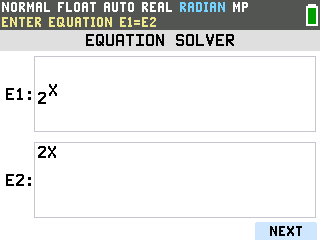
- Press NEXT. It is a label on the screen, not a key: it sits directly above
graph, sographis the key that presses it.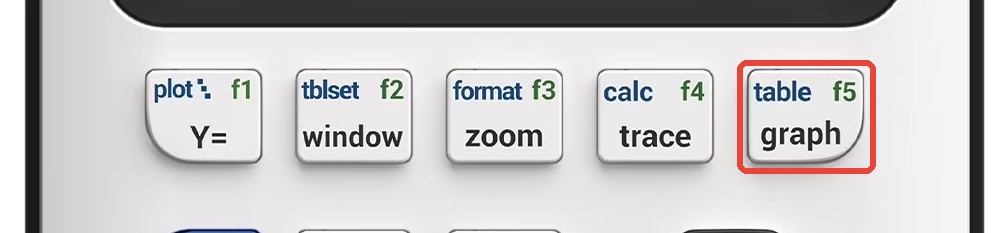
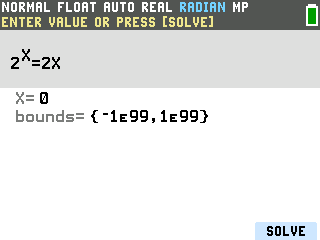
- Press SOLVE (the
graphkey again). The status bar reads SOLUTION IS MARKED and the answer lands on the X line: X = 1. The E1−E2 = 0 line below it confirms that both sides come out equal there.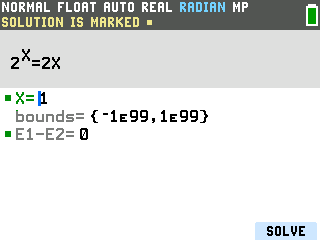
When the equation has more than one answer
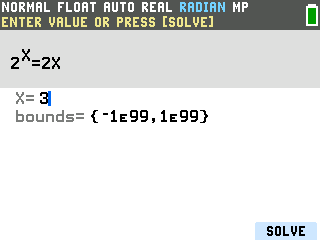
2x = 2x actually has two solutions, but Numeric Solver only gives one at a time: the one closest to whatever number was typed on the X line. So finding all the solutions is often just trial and error, trying different X values until you have found them all.
- Type a new number on the X line. Press 3, and it replaces the 1.
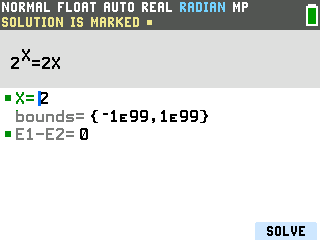
- Press SOLVE again. This time the answer is X = 2.
Good to know
- Know where to look before you guess. Graph both sides of the equation as two functions,
Y1 = 2x and Y2 = 2x, the way graphing a
function on the TI-84 Evo shows. Every place the two curves cross is a solution, and the x of each
crossing is the number to put on the X line.
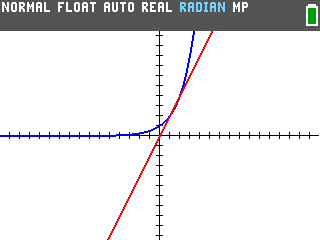
- Fence the search with bounds. The line under X reads
bounds = {−1×1099, 1×1099}, which is the whole number line. Down-arrow onto it and shrink those to a window that holds just the answer you want, and the number on the X line matters less. - Edit the equation without leaving the app. From the solve screen, press the up arrow until the E1 and E2 boxes come back. Change either side and press NEXT to solve again.
- Two names, one app. The title bar on the grid calls it NUMERIC SOLVER while the header on the app itself reads EQUATION SOLVER. They are the same tool.
- When the equation is a polynomial. If everything you're solving fits the shape anxn + … + a0 = 0, the Polynomial Root Finder hands back every root at once instead of one at a time, and it keeps exact fractions where they exist. For a plain quadratic, the Quadratic Formula program is a one-command alternative.
- Leaving the app. Press
onand you are back on the app grid; pressenteron the CALCULATOR icon for the home screen. From the home screen,onopens the grid again, so it is the way back in as well.