The TI-84 Evo has a Polynomial Root Finder built in, one of the apps on the grid that opens when you
press on. Hand it the coefficients of a quadratic, or of anything up to order 10, and it
lists every root at once, often as an exact fraction instead of a rounded decimal.
Open the Polynomial Root Finder
- Press
onfor the app grid, and arrow onto the p(x)=0 icon. The bar along the top names whatever is highlighted, so it reads POLYNOMIAL ROOT FINDER when you have the right one. If the icon isn't on your grid at all, a full memory reset has removed it along with the other built-in apps, and restoring your missing apps puts it back.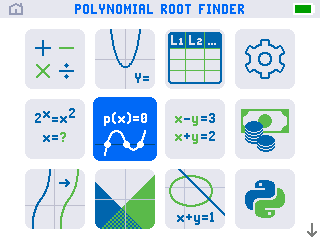
- Press
enterto open it. The app starts on a SETUP screen. ORDER is the highest exponent in your equation. The highest exponent in a quadratic is the 2 from x², so it can stay on 2.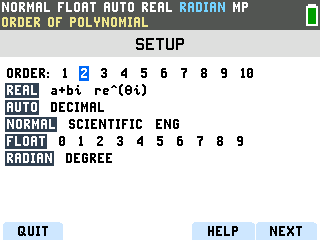
- Press NEXT. The five labels along the bottom of the screen belong to the five keys on
the top row, which carry the green f1 to f5 markings. NEXT sits above
graph, so that is the key that moves you on.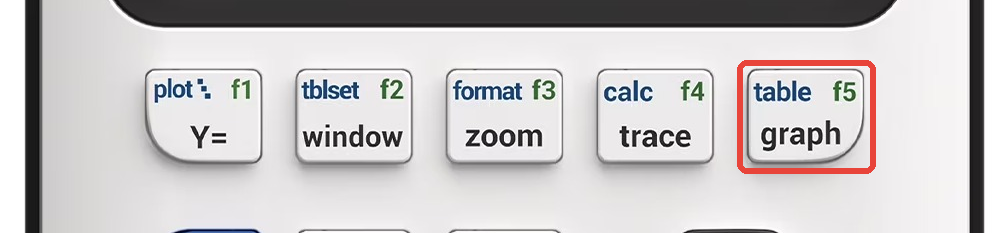
Type the coefficients and solve
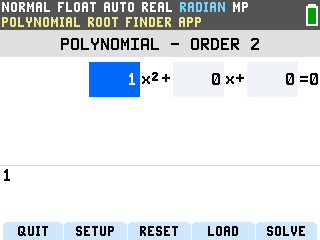
The coefficient screen is the whole app. This walk-through solves 2x² + 3x − 2 = 0.
- Type the first coefficient. Press 2. It lands on the entry line at the
bottom of the screen while the box itself still shows its old value.
Press
enterand the 2 drops into the box, and the highlight moves onto the sign just after the term.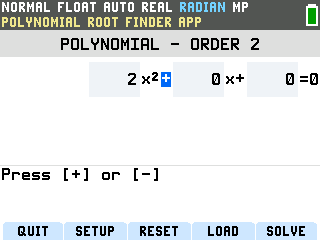
- Set that sign. The signs between the terms are boxes of their own, and the prompt at the
bottom spells out what they take: Press [+] or [-]. That means the
−subtraction key on the right side of the keypad, not the(-)negative key near the bottom, which does nothing here. 2x² + 3x needs a plus, so press+, thenenterto move along. - Type the middle coefficient. Press 3, then
enter. The highlight lands on the second sign. - Make the last sign a minus. Press
−, and the sign flips from + to −. Pressenterto move to the last box. - Type the constant. Press 2, then
enter. The line now reads 2x² + 3x − 2 = 0, which is the equation you set out to solve.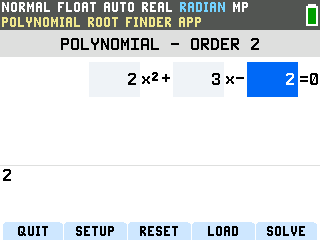
- Press SOLVE (the
graphkey again). Both roots arrive at once: x1 = −2 and x2 = ½, stacked as a real fraction rather than handed back as 0.5.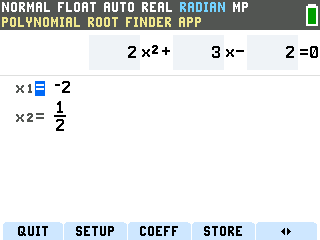
Cubics and higher
ORDER on the SETUP screen runs from 1 to 10, and nothing else about the app changes. Press SETUP (the
window key), arrow along the ORDER row to 3, press enter, then
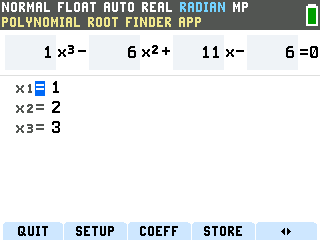
NEXT. The coefficient screen grows a box for x³ and fills in the same way, one number and one sign at
a time. Here is x³ − 6x² + 11x − 6 = 0 solved in one press:
Good to know
- Flip a root to a decimal. The last soft key on the results screen, the one marked with
little arrows, sits on
graphand switches the answers between exact and decimal form. The ½ becomes 0.5, and pressing it again brings the fraction back.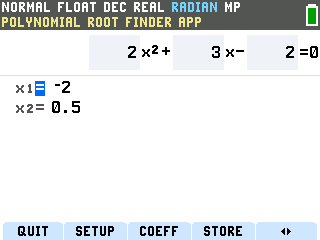
- Complex roots are one setting away. Left alone, the app answers
x² + 1 = 0 with No real roots found. Press SETUP, arrow down to the row that starts
with REAL, move right to a+bi and press
enter. The same equation now comes back as x1 = −i and x2 = i.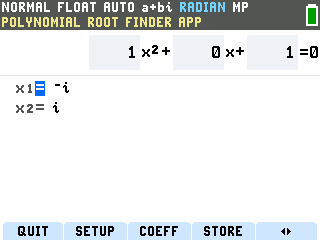
- Solve another one without starting over. COEFF (the
zoomkey) on the results screen goes back to the boxes with your numbers still in them, so you can change one coefficient and press SOLVE again. On that screen the same key is RESET, and its 1:Reset Defaults wipes everything back to 1x² + 0x + 0 = 0. - Send the polynomial to the graph. STORE (the
tracekey) on the results screen offers 2:Polynomial to Y=, which pastes the polynomial into the Y= list as Y1 and leaves it ready to draw. From there it graphs like anything else, covered in how to graph a function on the TI-84 Evo, and you can pin the same roots on the picture with the CALCULATE menu in how to find x- and y-intercepts on the TI-84 Evo. - Leaving the app. QUIT sits on the
y=key and drops you back at the home screen. From thereonflips between the home screen and the app grid, so it is also the way back in. - Which reset costs you the app. The everyday one is safe: MEMORY (
2ndthen the blue label above the toggle key) → 7:Reset → 1:All RAM only clears data and programs from RAM, and the p(x)=0 icon is still on the grid afterwards. It's the ALL tab's 1:All Memory that warns it deletes "all data, programs & Apps", and it means it: the root finder goes, along with Python and four other built-in apps.