Your TI-84 Evo keeps its built-in apps in the same memory as your programs and data, so a full memory reset takes them with it. Reinstalling the operating system puts every one of them back.
Check which apps are missing
Press on to bring up the app grid. It's the key at the bottom left, and on a
calculator that's already running it flips between the grid and whatever screen you were on.
A calculator that's lost its apps has one short page of eight icons, with no arrow in the corner to scroll for more:
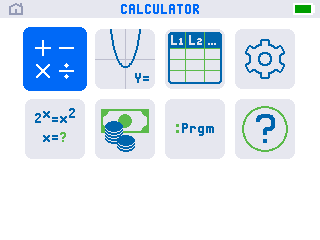
Six apps are gone from that grid: Polynomial Root Finder, System Solver, Transformation Graphing, Inequality Graphing, Lines and Conics and Python. The eight that survive are the calculator, the Y= function editor, the list editor, mode settings, the numeric solver, finance, TI-Basic and help.
If you're not sure what you're looking at, arrow onto any icon and the bar across the top names it.
What you need
- Your TI-84 Evo and its USB-C cable
- A computer with Chrome. TI's tool runs in the browser and talks to the calculator over USB, so there's nothing to download or install.
Before you start: installing the OS clears out the RAM. If a memory reset is what brought you here, there's probably nothing left to lose, but back up anything you care about first.
Reinstall the operating system
- Plug the calculator into your computer and make sure it's switched on.
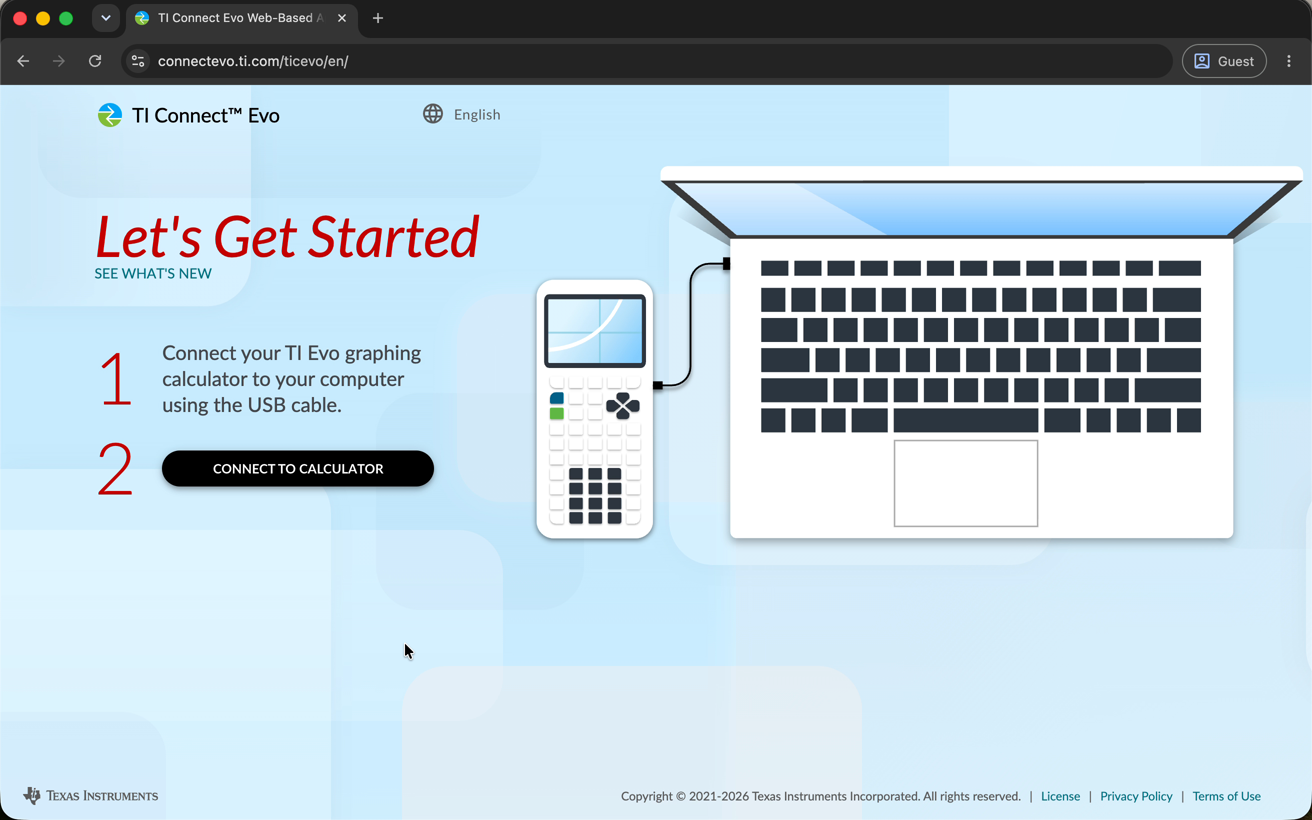
Go to connectevo.ti.com
and click CONNECT TO CALCULATOR.
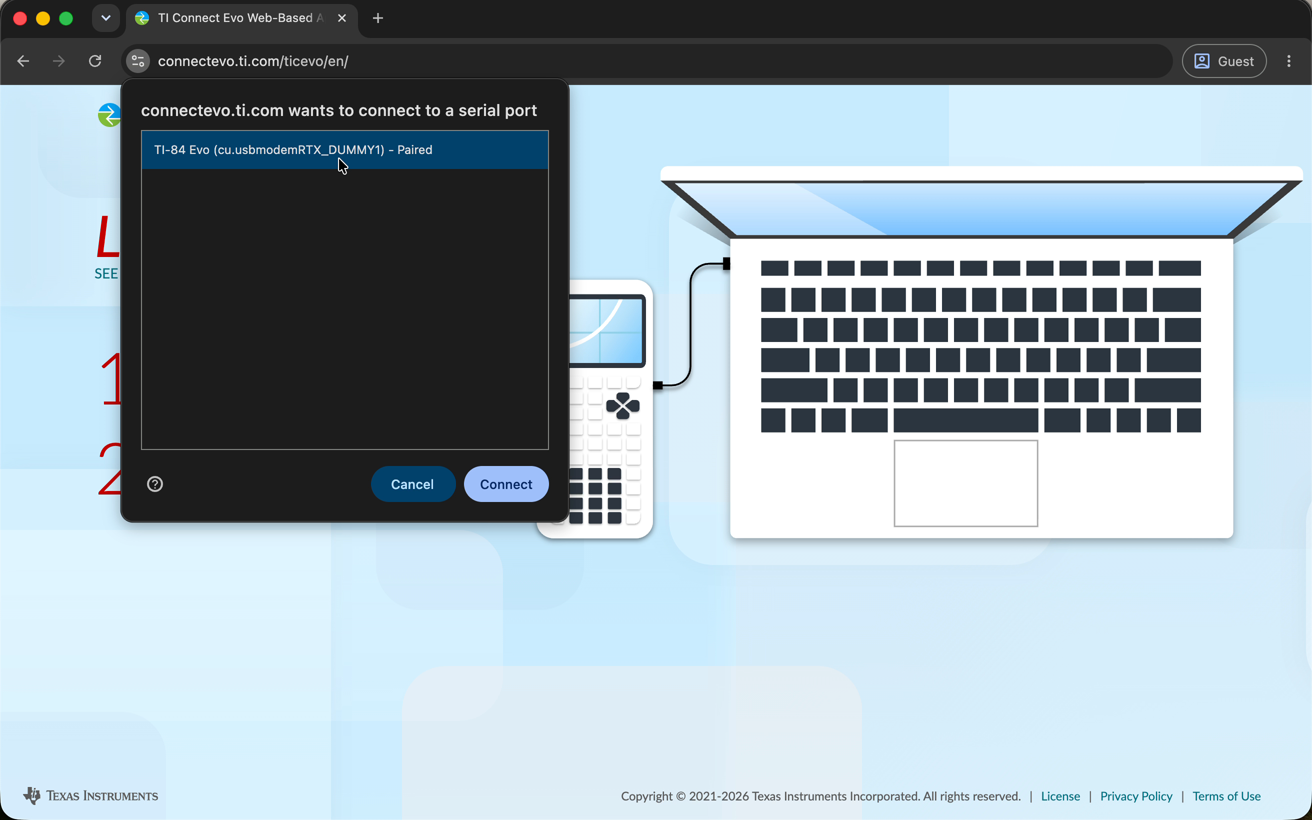
- Pick your calculator in the pop-up. Your browser asks which device it's
allowed to talk to. Click TI-84 Evo in the list, then Connect.
- Choose
INSTALL OSfrom the four options the site offers once it's connected.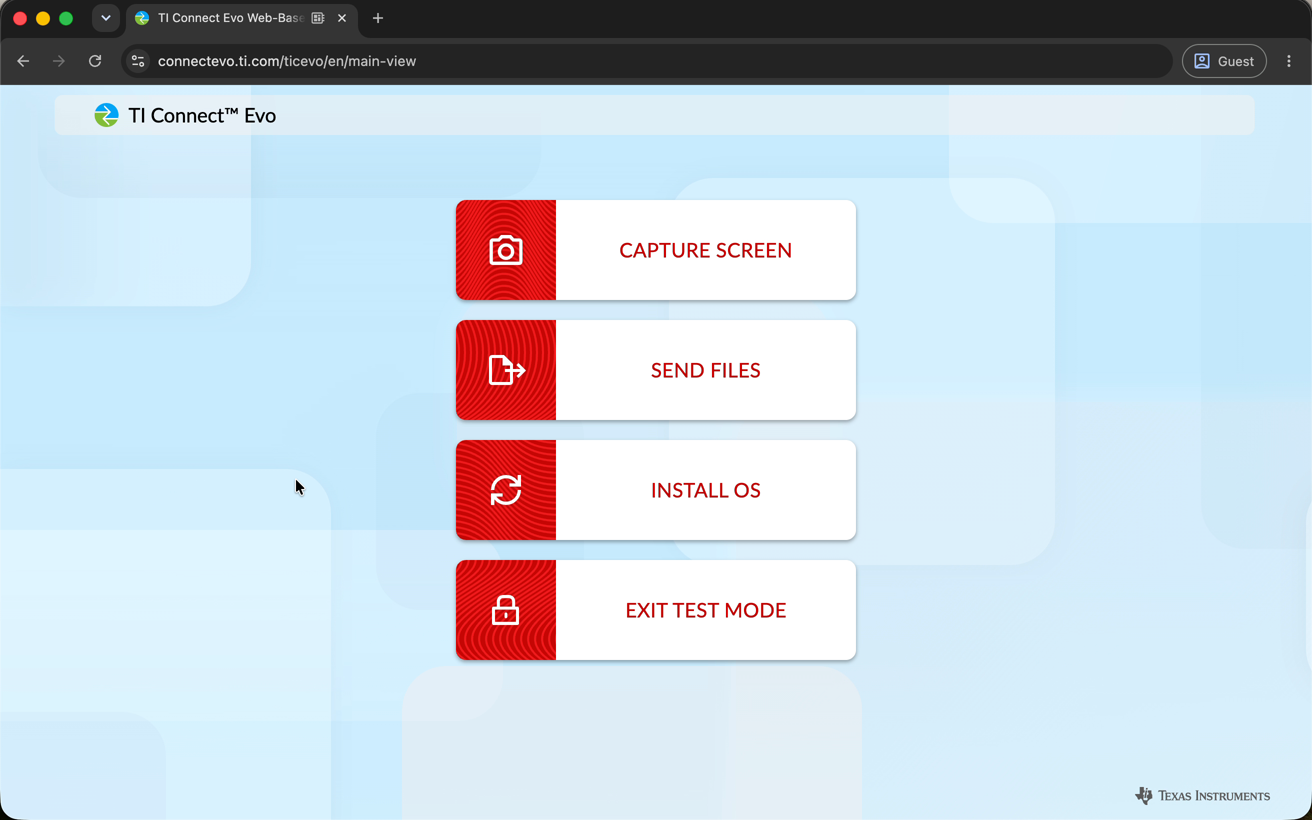
- Click
INSTALL OSagain on the screen that shows the latest version. This is the step that does the work: the apps are part of the operating system package, so they come across with it.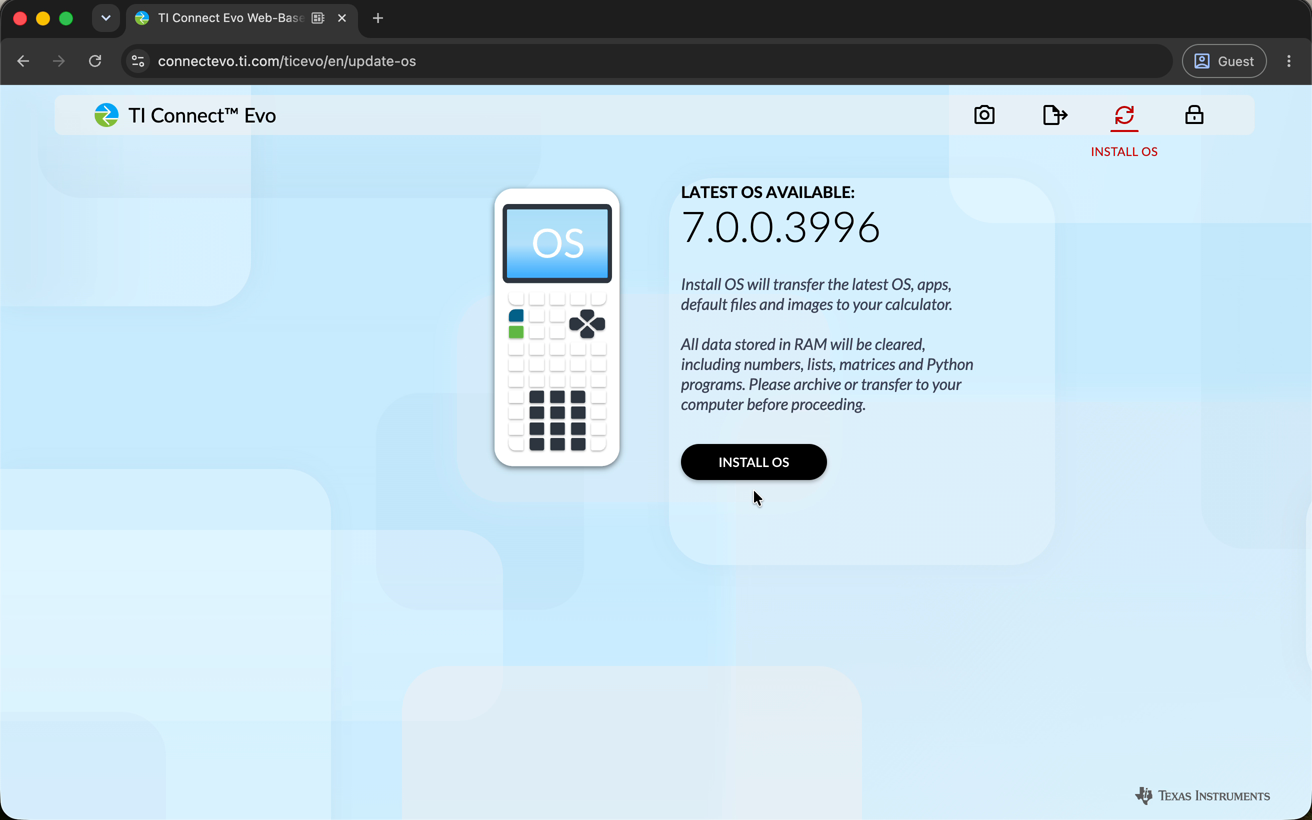
- Read the warning and click
CONTINUE. It's telling you the RAM gets erased, which is the same thing the note above covers.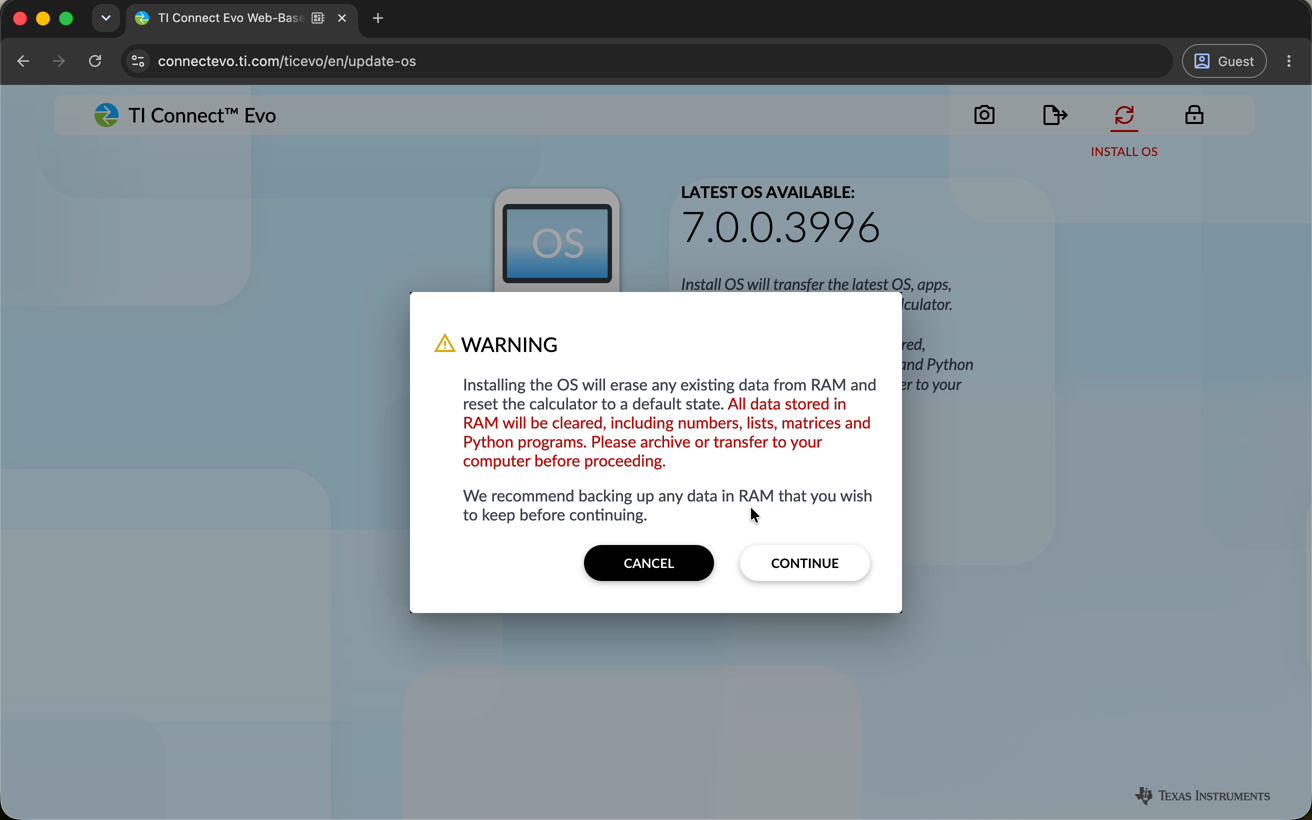
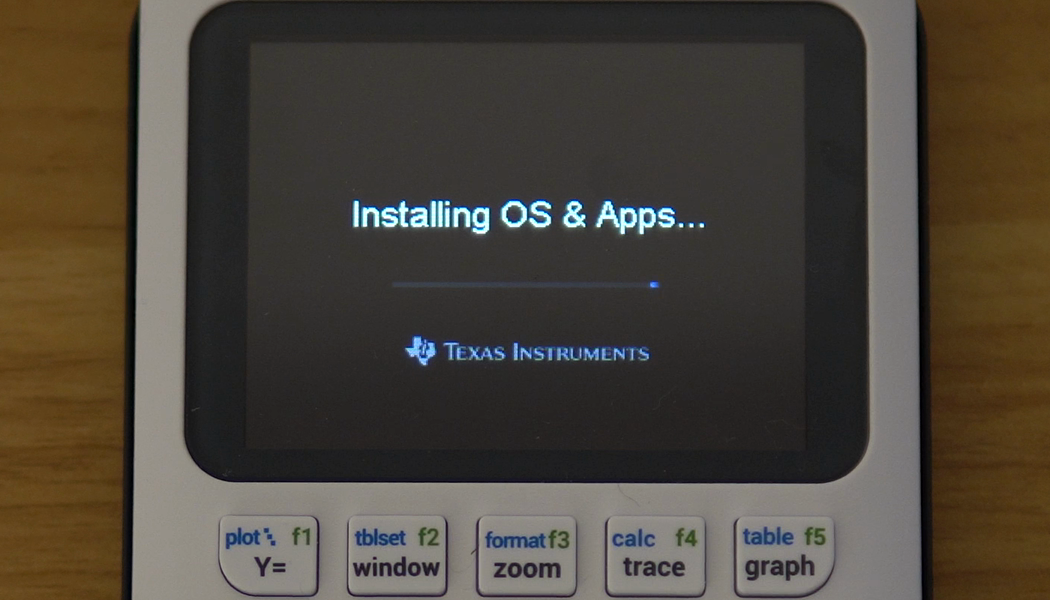
- Leave it alone for a couple of minutes. Keep the tab open and don't
unplug anything. Partway through, the calculator's own screen takes over and tells you what's
happening, apps included. It restarts by itself when it's done.
Check your apps are back
The browser tells you when it's finished, and you can close the tab once it does.
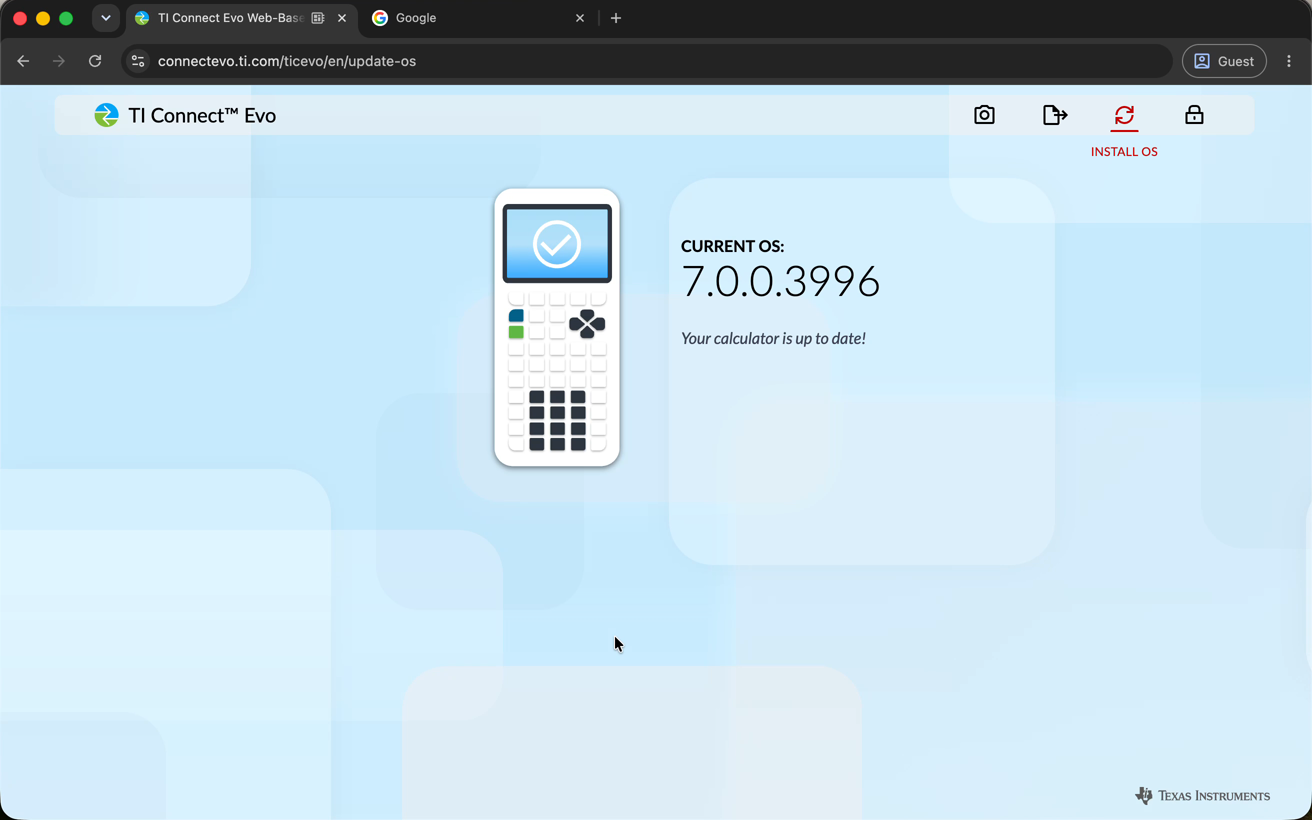
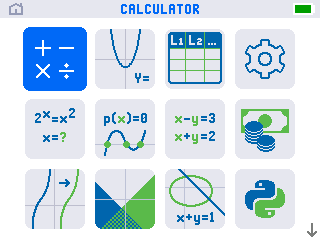
Press on and the grid is full again, with the arrow in the corner showing
there's a second page below:
Good to know
- Not every reset costs you your apps. Clearing the RAM leaves them alone. It's clearing all memory that empties the grid, and that's a common thing to do before an exam.
- Your version number won't match ours. The tool always offers the newest release, so a higher number than the screenshots here is normal and fine.