The TI-84 Evo has a dedicated square root function, and the MATH menu carries cube roots and any-index roots.
Enter a square root
- Press
2nd, thenx². The square root is the blue label above the x² key. Pressing 2nd and then x² opens a radical on the entry line.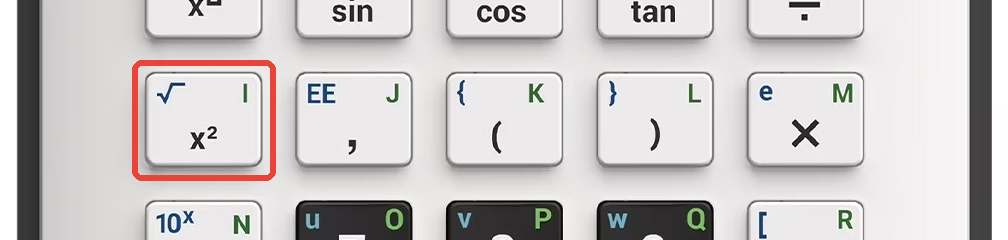
- Type the number inside the radical. This example uses 144.
- Press
enterfor the answer. The calculator returns 12.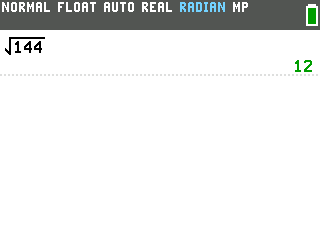
Cube roots and higher
For cube roots and other roots, open the MATH menu. The cube root is item 4, and the general any-index root is item 5.
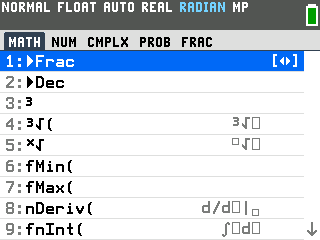
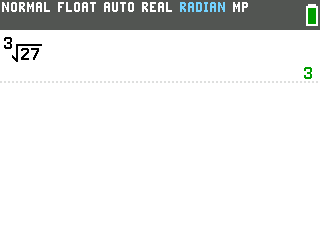
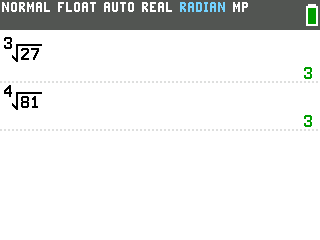
Cube root: press math, then 4. Type the number and press enter. The cube root of 27 is 3.
Any root: press math, then 5. The calculator opens a template with two boxes. Type the index (the small number in front of the radical) first, press the right arrow to move into the radical, then type the number. For the fourth root of 81, type 4, press right, type 81, and press enter to get 3.
Good to know
- Non-perfect roots give a decimal. The square root of 50 returns 7.071067812, not a simplified radical like 5√2. If your class needs simplified form, the radical simplifier program handles that.
- Everything you type stays inside the radical bar until you press the right arrow to step out. If your expression continues past the root (like √9 + 1), press the right arrow after the 9 before typing +1.