The TI-84 Evo keeps all of its resets on one menu, and the one you pick decides whether your programs and built-in apps survive. RAM is the memory your programs and data live in, so a RAM reset is the quick fix; a full memory reset is the one tests usually ask for.
Clear the RAM
This is the typical quick fix for clearing out your programs and getting the calculator back to normal when it is behaving strangely. It leaves the built-in apps alone.
- Press
2nd, then the toggle key. The toggle key sits between+andenter, with mem printed in blue above it. The MEMORY menu opens.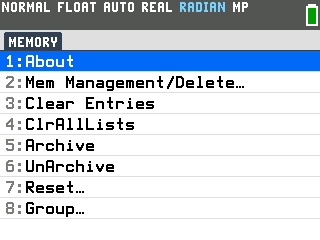
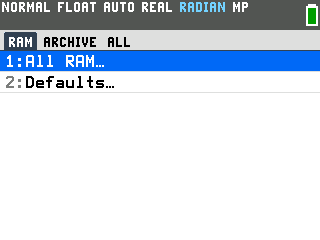
- Press 7 for Reset. The reset screen has three tabs, RAM,
ARCHIVE and ALL, and opens on RAM.
- Press
enteron 1:All RAM. The calculator asks RESET RAM? and spells out what goes: all data and programs from RAM.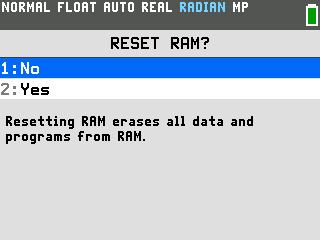
- Press 2 for Yes. The screen reads RAM Cleared.
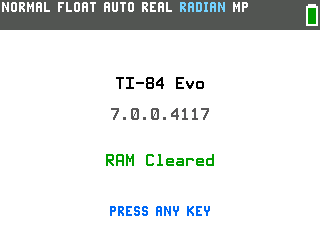
- Press any key. You land on the app grid. Press
enteron CALCULATOR to get back to the home screen.
- Gone: stored variables, lists, the functions in Y=, the home screen history, and any program that was not archived. Mode settings go back to their defaults too, so the status bar reads RADIAN again if you had switched to degrees.
- Kept: every built-in app and any program you archived (see Good to know below). If a game or program you sent from CalcPlex is gone afterwards, send it again from its page.
Reset just the settings
If the calculator is behaving strangely and you want to keep everything on it, reset the defaults instead.
- Press
2nd, then the toggle key, then 7 for Reset. The reset screen opens on the RAM tab again. - Press 2 for Defaults. The calculator asks RESET DEFAULTS?
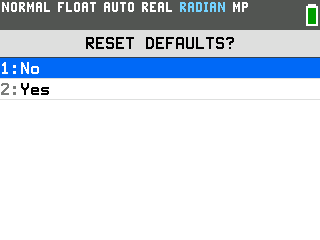
- Press 2 for Yes. The screen reads Defaults Set, and any key takes you to the app grid.
This puts the mode settings back to their defaults and keeps your programs, stored variables and Y= functions.
Wipe everything
A full memory reset is what a standardized test usually asks for. The ALL tab erases the RAM and the archive together, so archived programs go too, and it deletes six of the built-in apps. Read the last step before you do it.
- Press
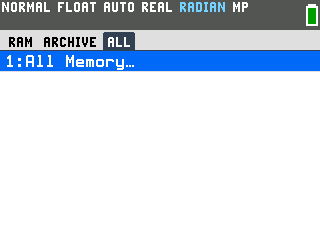
2nd, then the toggle key, then 7 for Reset. - Arrow right twice to the ALL tab. It has one option, 1:All Memory.
- Press
enteron 1:All Memory. The warning names what goes: all data, programs and Apps from RAM and Archive.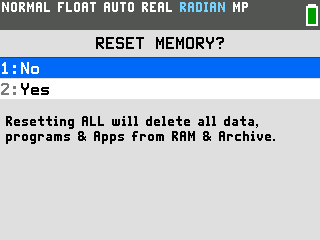
- Press 2 for Yes. The screen reads MEM Cleared.
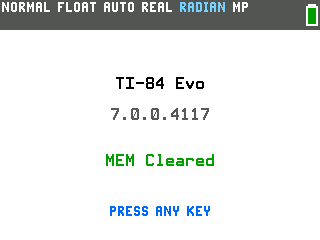
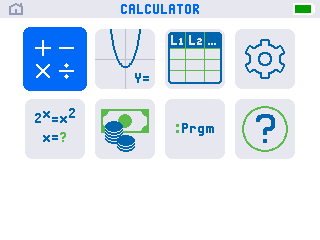
- Press any key. The app grid comes back with eight icons instead of fourteen. The
Polynomial Root Finder, System Solver, Transformation Graphing, Inequality Graphing, Lines and Conics and
Python are gone, and your Python programs went with them. Reinstalling the operating system brings the apps
back: how to restore missing apps on the
TI-84 Evo.
Good to know
- Keep a program through a RAM reset by archiving it. Press
2nd, then the toggle key, choose 2:Mem Management/Delete, then 6:TI-Basic Program. Arrow onto the program and pressenter: an asterisk appears next to it, and it now survives All RAM. Archived programs still run from theprgmmenu as normal.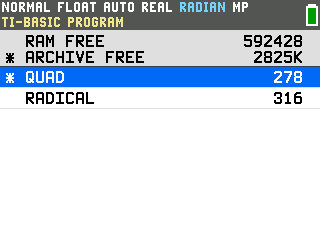
- The ARCHIVE tab is the reverse of RAM. It leaves the RAM alone and erases archived items only: 1:Vars for archived data and programs, 2:Apps for apps, 3:Both for everything in the archive. Each one shows its own confirmation screen first.
- Changed your mind? Every confirmation screen defaults to 1:No, and
clearbacks out of the reset screen without changing anything. - A reset is not test mode. Test mode blocks programs and apps during an exam without deleting them, and it takes a computer to switch off afterwards. If that is what your test needs, see how to exit test mode on the TI-84 Evo for the way back.