You can put notes on the TI-84 Evo with CalcPlex Notes: type them in your browser and send them to your calculator using a USB cable. Great for formulas and definitions.
Put your notes on the calculator
- Open the CalcPlex Notes page.
- Type or paste your notes. The preview beside it shows the lines the way the calculator will.
- Name your program in the box above your notes. Names take up to eight letters and numbers, like BIOLOGY.
- Plug the calculator into your computer with its charging cable and turn it on. Sending needs Chrome, Edge, or Firefox on a computer.
- Click Send to calculator. Pick your calculator in the browser popup and click Connect.
- Press the
prgmkey on the calculator. The PROGRAMMING menu opens. - Arrow down to Python App and press
enter. If Python App is not in the menu, a full memory reset has removed it, and reinstalling Python puts it back.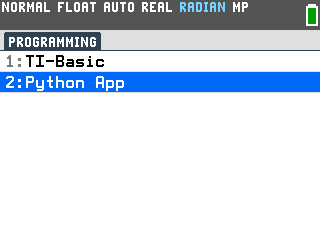
- Arrow to the name you gave your notes.
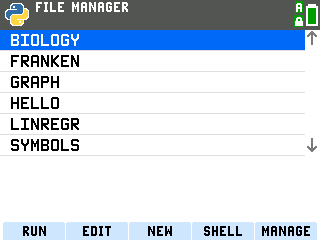
- Press
enterto open your notes.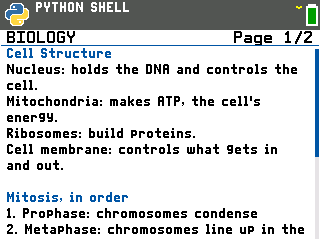
Reading and paging
- Up and down scroll one line at a time.
- Left and right move a page at a time, and the counter in the top right tracks where you are. The counter only appears when a note runs past one screen.
enterpages forward as well.clearcloses the note and returns to the Python shell.
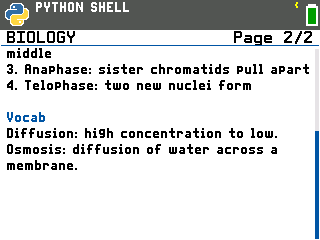
Start a line with # for a heading
Any line of your notes that begins with # comes out as a blue heading on the calculator, and the # itself does not appear.
In the screen above, Vocab was typed as # Vocab.
How much fits
A note can run up to 100 screens, and the page stops you before you send something too big.
Chapter one of Frankenstein, pasted in whole and named FRANKEN, is 25 screens.

Good to know
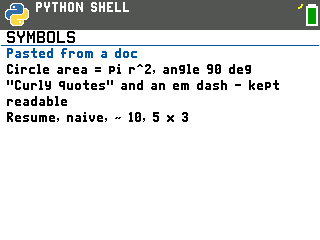
- Symbols and accents are converted, not rejected. π becomes pi, ° becomes deg, curly quotes and long dashes become the straight kind, and é becomes e. Emoji are dropped.
- Sending the same name again replaces that note. Fix a typo, send it again, and the calculator still has one BIOLOGY. A different name gives you a second note beside the first.
- Your draft stays in the browser. The page keeps what you typed on that computer, so closing the tab does not lose it.
- Test mode hides your notes. Press-to-test locks the programs on the calculator, so a note you sent is not available until the calculator comes out of it. See How to Exit Test Mode on the TI-84 Evo.