The TI-84 Evo has a piecewise template that keeps each piece of a function on its own row, with that piece's condition right beside it.
Type the piecewise function
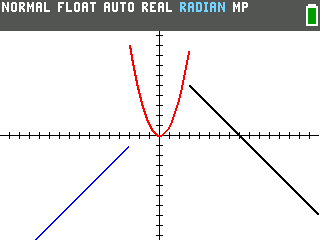
As an example, this graphs a function with three pieces:
| Piece | Condition |
|---|---|
| y = x + 2 | x < −3 |
| y = x² | −3 ≤ x < 3 |
| y = 8 − x | x ≥ 3 |
- Press
y=. The cursor starts on Y1. If Y1 already holds a function, pressclearto empty it. (New to graphing on the Evo? Graphing a function on the TI-84 Evo covers the basics.) - Press
math, then press the up arrow twice. The list wraps around to the bottom and stops on piecewise(.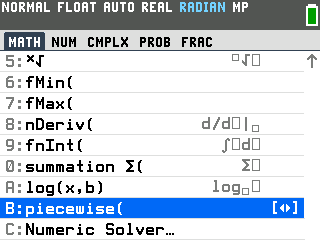
- Press
enter. A box asks how many PIECES the function has.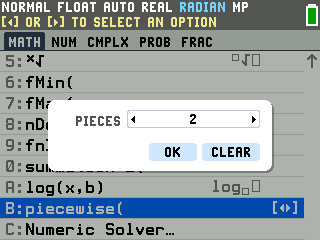
- Press the right or left arrow until PIECES reads 3, then press
enter. The template appears on Y1 with one row per piece. In each row, the left box holds the piece and the right box holds its condition.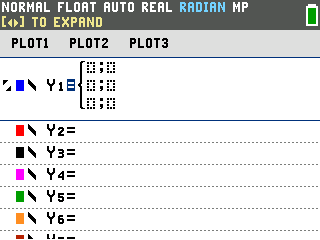
- Type the first piece, then press the right arrow. For x + 2, press
X,+,2. The right arrow moves the cursor into the condition box.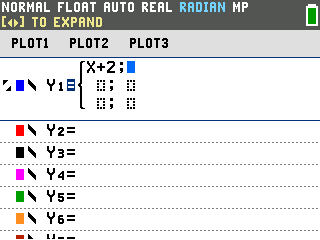
- Press
2nd, thenmath, then the left arrow. The blue =≤≠> label abovemathopens the TEST menu, and the left arrow wraps around to its CONDITIONS tab, where every inequality already has the X in it. - Scroll down to X< and press
enter.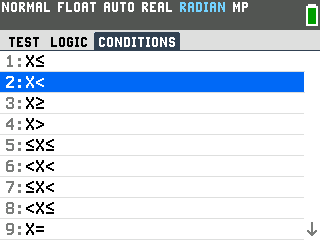
- Type −3. The first row now reads X+2; X<−3.
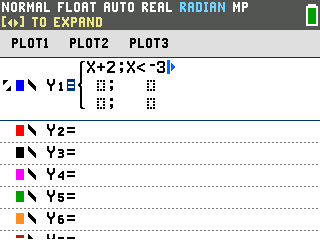
- Press the right arrow, then type x². The right arrow moves down to the second
row. For x², press
X, thenx². - Press the right arrow, then type −3. This condition has a number on each side
of x, so type the left one first.
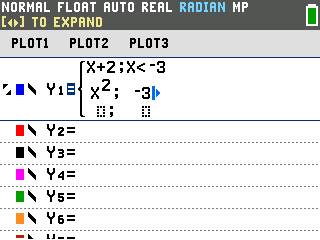
- Press
2nd,mathand the left arrow again, then scroll down to ≤X<. On OS 7.0 this item reads ≤X and X< instead.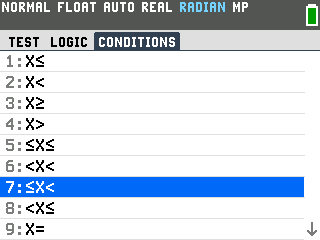
- Press
enter, then type 3. The second row now reads X²; −3≤X<3.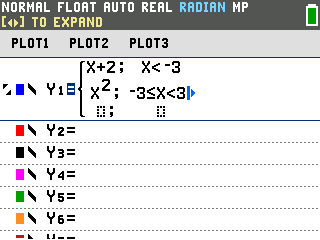
- Press the right arrow, type 8 − x, and press the right arrow again. For
8 − x, press
8,−,X. The cursor moves down to the third row, then into its condition box. - Press
2nd,mathand the left arrow, choose X≥, and type 3. All three rows are filled in.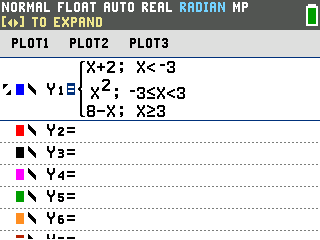
- Press
graph. Each piece is drawn only where its condition is true.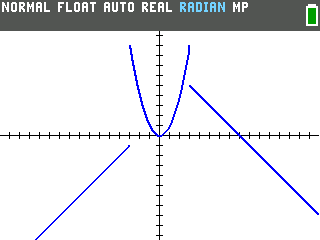
Check the endpoints in the table
The graph has no open or closed dots where a piece ends, so it can't tell you which piece owns
x = −3 or x = 3. The table can. Press 2nd, then graph (TABLE is the blue
label above it), and press the up arrow until the cursor reaches X = −3.
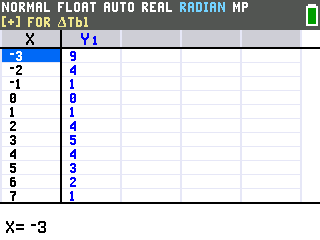
- At X = −3, Y1 is 9. That's (−3)², from x², so −3 belongs to the middle piece: a closed dot on the parabola and an open dot at the end of the left line.
- At X = 3, Y1 is 5. That's 8 − 3, from 8 − x, so 3 belongs to the right piece: a closed dot on the right line and an open dot at the end of the parabola.
Good to know
- Each piece can have its own color. Put every piece on its own Y= line, each as a
piecewise( with PIECES set to 1. Y1, Y2 and Y3 graph in blue, red and black.
- The TEST tab has the plain signs. If you'd rather type the X yourself, press
X, then2nd,mathand pick the sign from TEST. The condition comes out the same. - A missing stretch of graph usually means a gap in the conditions. Any x that no condition covers shows ERROR in the table, and nothing is drawn there.
- A piece running off the screen? Adjust the graphing window to see all of it.