The TI-84 Evo multiplies matrices for you: type the two matrices, press the times key, and the product comes back as a matrix.
Type the matrices and multiply
This example multiplies a 2 × 3 matrix by a 3 × 2 matrix.
- Open the matrix maker. Press
alpha, thenzoom. A size picker pops up, with a ROW column and a COL column.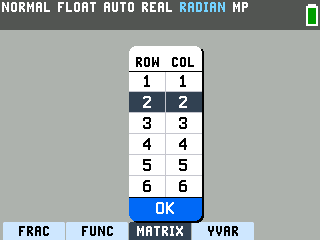
- Pick the size. The darkened numbers under ROW and COL are the size it will build, and a fresh calculator starts at 2 and 2. This matrix needs 3 columns: arrow up into the COL list, highlight 3, and press
enterto set it.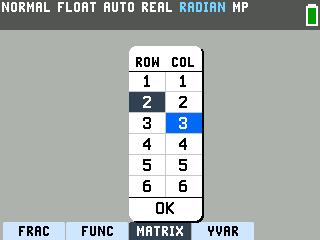
- Choose OK. Arrow down to OK and press
enter. An empty 2 × 3 matrix lands on the home screen.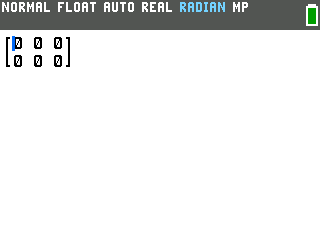
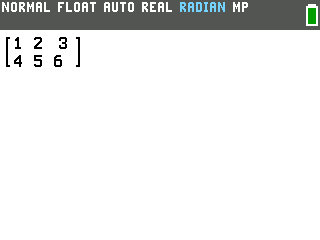
- Fill in the first matrix. Type 1, then press the right arrow to hop to the next box. The cursor works left to right across the top row, then drops to the bottom row. Enter 1, 2, 3 across the top, then 4, 5, 6.
- Step out and press the times key. After the last entry, one more right arrow moves the cursor outside the brackets. Press the times key, and a multiplication dot appears after the matrix.
- Make the second matrix 3 × 2. Press
alpha, thenzoom, again. The picker keeps the last size you used, so set both numbers this time: highlight 3 in the ROW list and pressenter, highlight 2 in the COL list and pressenter, then choose OK. - Fill it the same way. Enter 1 and 2 on the top row, 3 and 4 in the middle, and 5 and 6 on the bottom.
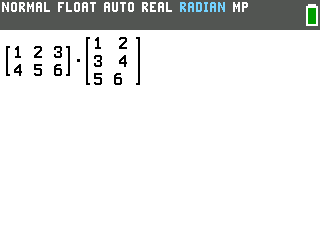
- Press
enter. The product appears on the right, a 2 × 2 matrix: 22 and 28 on the top row, 49 and 64 below.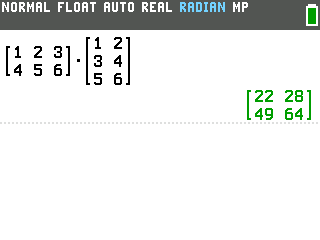
Store matrices as [A] and [B]
The calculator can also keep matrices under names like [A] and [B], the way most worksheets write them. Stored matrices can be reused in as many calculations as you like.
- Open the matrix editor. Press
2nd, thenvars; the blue MATRIX label above the vars key marks the matrix menu. Arrow right twice to the EDIT tab, and with [A] highlighted at the top of the list, pressenter.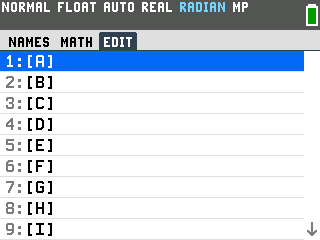
- Set the size, then type the entries. The cursor starts on the row count. Type 2, press
enter, type 3, pressenter. Then type each entry and pressenterafter it; the cursor moves across each row in turn, and the line at the bottom of the screen names the cell you are on.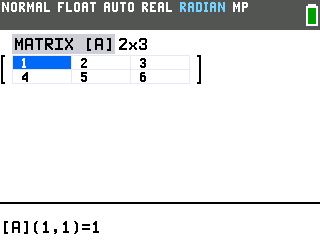
- Store the second matrix. Press
2nd, thenmode, to quit back to the home screen. Reopen the matrix menu with2ndandvars, arrow to EDIT, choose [B], and make it 3 × 2 with the same entries, 1 through 6.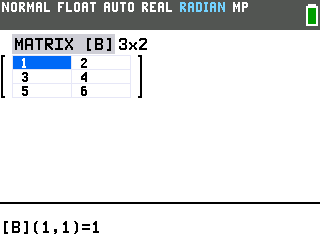
- Paste [A] onto the home screen. Quit to the home screen again, then press
2ndandvars. The NAMES tab lists your matrices along with their sizes. With [A] highlighted, pressenter, then press the times key.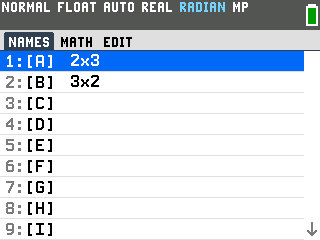
- Paste [B]. Open the matrix menu once more, arrow down to [B], and press
enter. The line reads [A]·[B].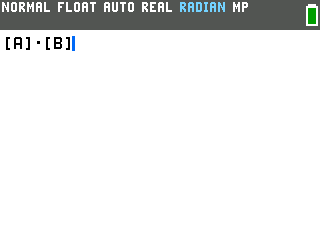
- Press
enter. The same product as before comes back, this time from the stored matrices.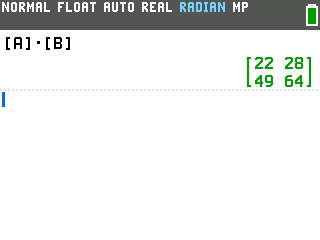
Good to know
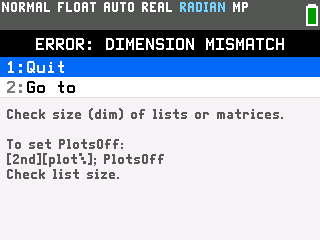
- Some sizes won't multiply. Try the 2 × 3 matrix times itself and the calculator stops with ERROR: DIMENSION MISMATCH — choose 1:Quit to get back to the home screen.
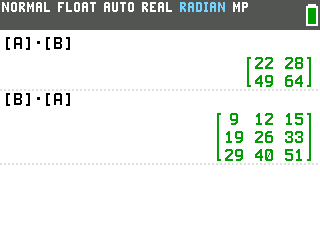
- Order changes the whole answer. [B]·[A] multiplies the same two matrices and returns a 3 × 3 matrix — a different size, not just different numbers. Enter them in the order the problem gives them.
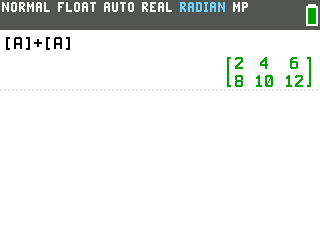
- Adding and subtracting need the exact same size. [A]+[A] adds matching entries. Two matrices with different sizes won't add at all.
- Plain numbers and powers work too. 3[A] multiplies every entry by 3, and [A]² works when the matrix is square.
- Bigger matrices go through the editor. The matrix maker's size picker stops at 6 rows and 6 columns; the matrix editor accepts up to 99 × 99.